
This page has several widgets to give you an overview of your newsletters. You can access it in the My Services area. Simply select My Services from the menu and then click Overview.

There are several widgets on this page. We’ll take them one at a time. At the top left of the page, you’ll select the newsletters you’d like to view.
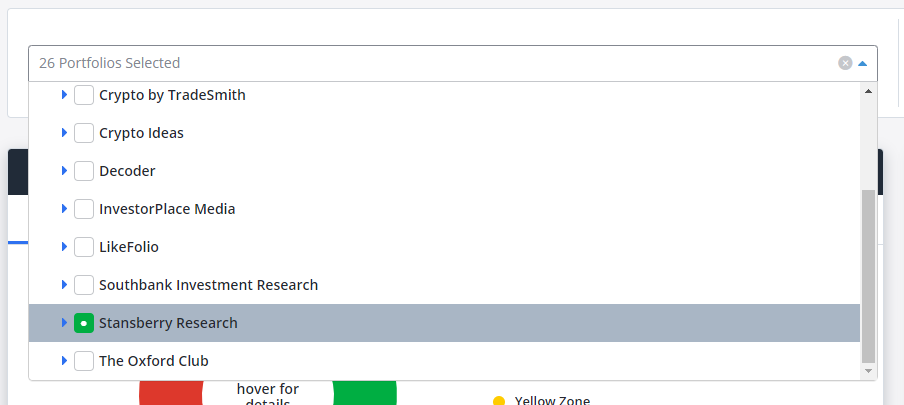
In our example above, we were viewing all our Stansberry Research newsletters. To include our other newsletters, we’d click the white box to the left of the publisher’s name. If we wanted to only include specific newsletters, we’d click the little triangle to the left of the publisher’s name. This makes the list of their newsletters appear.
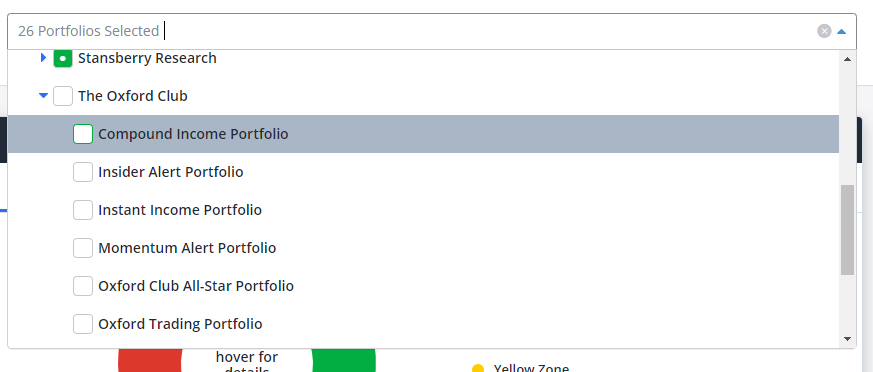
Then, we’d click the white box to the left of the newsletter name to include it.
After we’ve selected our newsletters, we can see the percentage of positions in our Health Indicator Green Zone on the top right of the page.
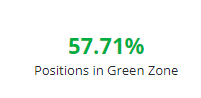
The Health Indicator tells you how healthy your position is.
- Green is good; the position is trading normally based on historic performance
- Yellow is cautionary; the position is halfway to stopped out
- Red is stopped out
There are four widgets below this. First is the Portfolio Distribution.
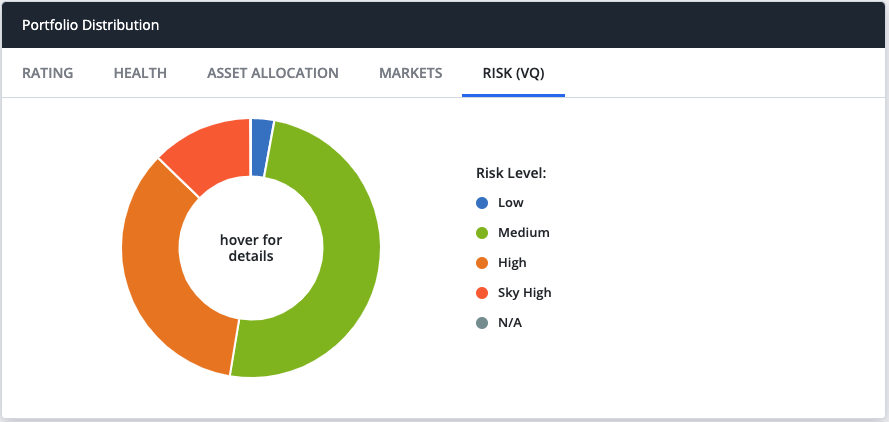
Take note of the little tabs at the top of this widget. There are Rating, Health, Asset Allocation, Markets, and Risk (VQ). You can switch between any of these tabs. In our example above, we’re viewing the Risk (VQ) tab. Note – The tabs that you see are based on your subscription(s), so your view may differ.
The VQ tells you how risky your positions are.
- Below 15% is low risk
- 15 – 30% is medium risk
- 30 – 50% is high risk
- Above 50% is sky-high risk
To the right of this, you’ll find your Ranked Recommendations.
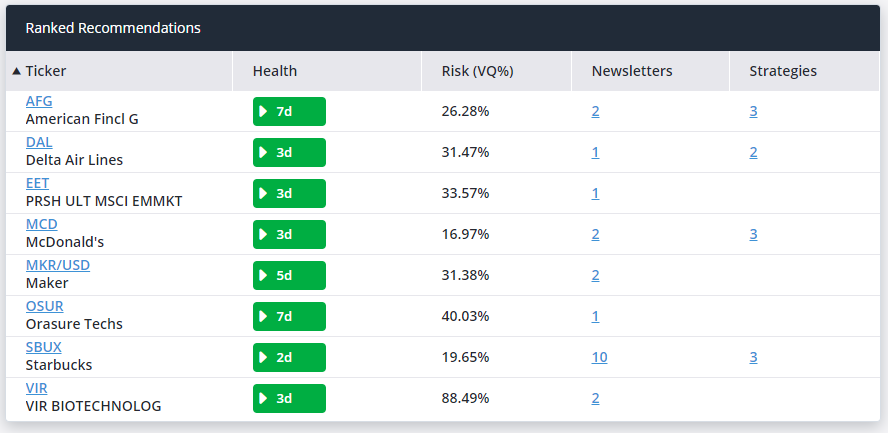
You can click the ticker symbol to see more information about that position.
Take note of the Newsletters and Strategies columns. These have hyperlinked numbers in them. You can click these numbers to see which newsletter(s) the position appears in and which strategies the position qualifies for. Not all positions may qualify for a strategy.
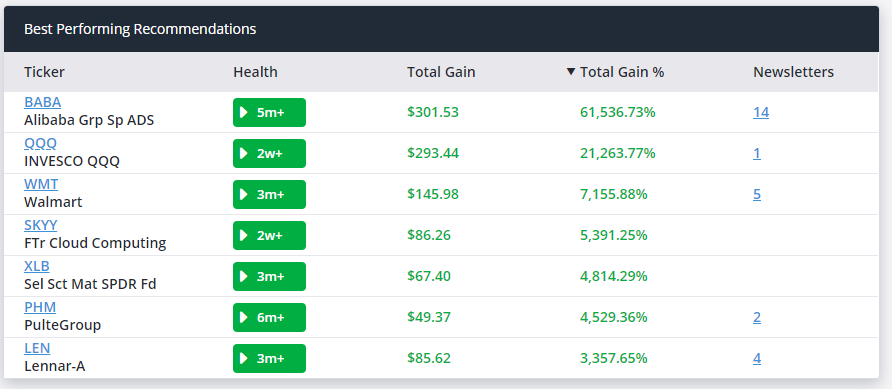
Below these two widgets, you’ll find the Best Performing Recommendations.
Finally, you’ll have the Recent Events.
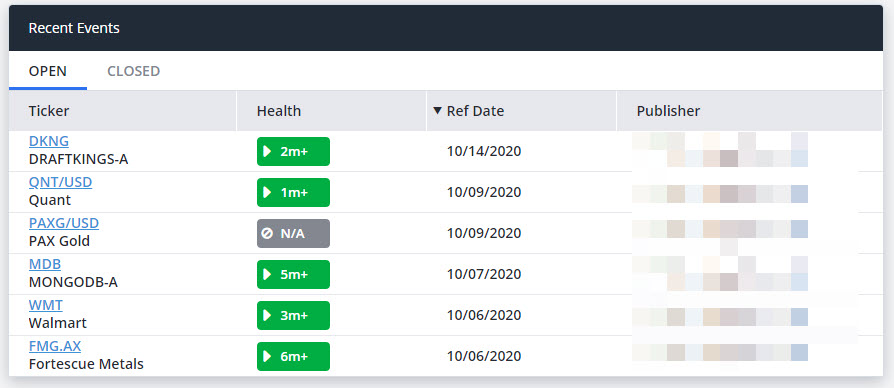
Here you’ll find recently opened or closed positions by your Publisher. In our example above, we can see we were viewing Open events. We can tell because Open has a blue line under it.
If you don’t have access to the Overview page and would like more information, please call us at 866-220-1107.
*Note – The tabs and features you see on your TradeSmith Finance site will vary based on subscription(s) and subscription level(s). Pictures in our Education Center articles are taken from a TradeSmith Platinum account. The examples above are not recommendations.